10 November 2026 VoxioTelecom
VoIP One-Way Audio: Troubleshooting SIP, NAT and RTP
Fix one-way VoIP audio with a step-by-step checklist for SDP, RTP, NAT, firewalls and Asterisk PJSIP, without weakening your network security.
Fix one-way VoIP audio with a step-by-step checklist for SDP, RTP, NAT, firewalls and Asterisk PJSIP, without weakening your network security.
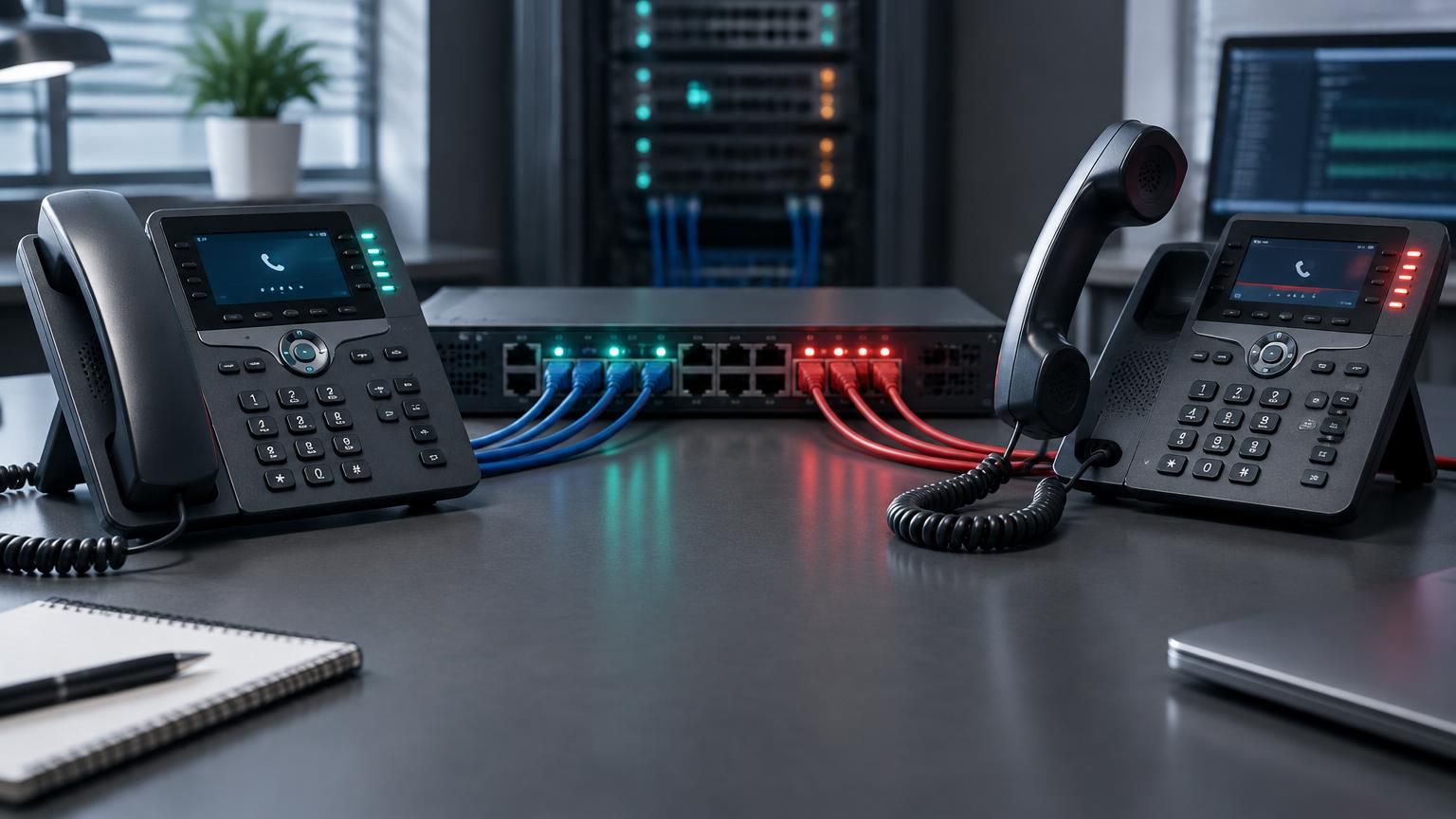
A call can connect successfully and still have one-way audio. SIP establishes the session, while RTP normally carries the voice. Successful registration or a SIP 200 OK does not prove that media can travel in both directions.
Start by identifying who cannot hear whom, then trace the missing media direction. Do not change credentials or switch carriers at random: those changes rarely explain a call that already connects.
| Symptom | First checks |
|---|---|
| You hear the recipient, but they cannot hear you | Your microphone, outbound RTP and the media address your side advertises |
| The recipient hears you, but you hear nothing | Inbound RTP, local firewall rules and where the remote side sends media |
| Neither party hears anything | SDP addresses, both RTP directions, codecs and endpoint audio devices |
| Audio fails only after transfer or hold | Updated SDP, direct-media behavior and reachability between the new endpoints |
| A softphone works on one network but not another | NAT, VPN routing, firewall behavior and SIP ALG |
These are starting points, not proof of a cause. A muted microphone or wrong playback device can resemble a network fault.
Use a destination you are authorized to call. Test the same trunk, destination and endpoint twice, changing only one variable between attempts. Record the UTC time and whether the failure affects inbound calls, outbound calls or both.
Check the microphone and speaker locally first. If the endpoint does not capture audio, no firewall change will fix it. Then compare with a known-working device on the same network, where available.
If the call is rejected before answer, follow the SIP response-code troubleshooting guide instead. A rejected INVITE and a connected call with missing audio are different problems.
The SDP offer and answer describe where each side expects to receive media. Check the connection address, the audio port and the negotiated codec in the messages for the failing call.
A private address advertised to a remote carrier can be unreachable unless the deployment deliberately uses a VPN, SBC or media relay. Likewise, a correct public address is not enough if the advertised port is blocked or forwarded to the wrong machine.
Check the original call setup and any later re-INVITE or UPDATE. Transfers and hold can change the media destination after the initial call worked.
Use your PBX diagnostics or a short, authorized packet capture to compare media sent and received. Filter by the addresses and ports from the failing call rather than assuming that every RTP stream uses the same port.
Signaling and media may come from different provider addresses. Do not assume that allowing only the SIP server also permits all valid RTP sources. Ask the provider for its current media ranges and restrict access accordingly.
The official Asterisk NAT guide explains local_net, external_media_address and external_signaling_address for deployments behind NAT. These settings must reflect your actual topology; copying another operator’s addresses is not a fix.
Endpoint options such as rtp_symmetric, force_rport and rewrite_contact address different NAT behaviors. See the PJSIP option reference before changing them. If direct media makes the endpoints communicate without the PBX, both endpoints must be reachable through that new path.
Confirm the RTP range configured on your own PBX. Do not blindly open a commonly quoted range, expose the whole server, or disable the firewall. Back up the configuration and plan changes that may require a restart.
SIP ALG can rewrite signaling or SDP unexpectedly. If your router provides it, perform a controlled test with ALG disabled according to the manufacturer’s instructions, then compare the actual messages. Do not assume ALG is responsible without evidence.
For a VPN, verify whether signaling and media use the same intended route. An endpoint that registers through the tunnel but advertises an unreachable local address can connect calls without usable audio.
Include the UTC timestamp, call ID, affected direction, endpoint/PBX version and a concise description of who could hear whom. Use the portal’s support channel for sensitive call information. Redact SIP passwords, authorization headers and unrelated customer data from logs; captures can contain private audio.
Pair this checklist with our Asterisk PJSIP setup guide and SIP trunk security checklist. Confirm two-way audio on a controlled call before increasing production traffic.
Can a SIP trunk register successfully but have no audio? Yes. Registration checks signaling reachability and authentication, not whether RTP media can pass in both directions.
Does one-way audio always mean a firewall problem? No. Firewalls and NAT are common causes, but incorrect SDP, direct media, incompatible media settings and endpoint audio devices can produce similar symptoms.
Should I open every UDP port to fix it? No. Confirm the configured media ports and authorized provider ranges, then apply narrowly scoped rules; keep unrelated services protected.
Will buying a different DID fix outbound one-way audio? Usually not. A DID is an inbound telephone number, while missing outbound audio is normally a media-path or endpoint issue that needs separate diagnosis.
Create an account to browse the full A-Z deck in your portal — Premium CLI and Standard clearly labelled, searchable by prefix or destination.